1
Get the email source
Copy the campaign HTML, or save the received message as an .eml file from your email client.
Paste HTMLUpload EML

Convert a received email or HTML campaign into one clean, full-length PNG without browser chrome, inbox sidebars, or manual image stitching.
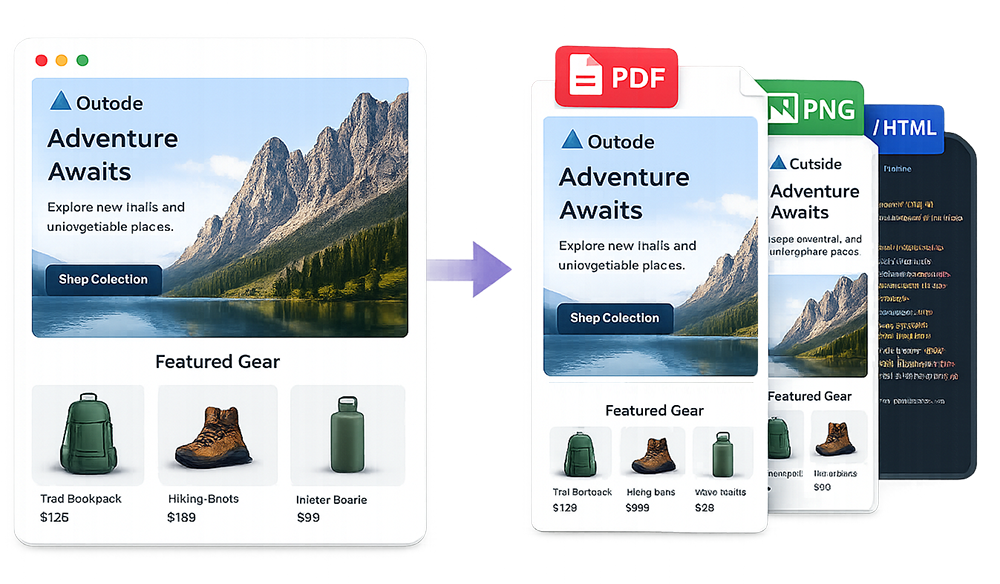
To save an email as a PNG, paste the email HTML or upload an EML file to ScreenshotEmails. Preview the message at desktop or mobile width, then download a full-length PNG containing the email itself.
This avoids the usual problems with ordinary screenshots: chopped-off content, visible inbox controls, personal account details, and several image files that need to be stitched together.
Use HTML when you are working on a campaign. Use EML when you are starting from an email already received in an inbox.
Copy the campaign HTML, or save the received message as an .eml file from your email client.
Check the rendered email and select a desktop or mobile viewport based on the image you need.
Choose the PNG export option to save the complete email as a single image.
No browser chrome, inbox sidebars, or manual image stitching. Just a clean visual export of the email.
Convert Email to PNGEmail messages are often taller than the screen and surrounded by interface elements you do not want in the final image.
A standard screenshot captures only what is visible. Long newsletters may require several separate images.
Account names, sender lists, labels, browser tabs, and notification counts can distract from the creative or expose private information.
Different window sizes, zoom levels, and crops make campaign archives and portfolios look inconsistent.
When the email already exists in Gmail, Outlook, Apple Mail, Thunderbird, or another client, the most reliable starting point is usually an EML file. An EML preserves the message content and can contain the HTML body, headers, inline assets, and attachment references.
Menu names differ by email client. Gmail may provide a message download option, while desktop clients often use Save As or Export.
If you are working on a campaign before it is sent, paste the HTML directly into ScreenshotEmails. This is faster than sending a test email to yourself, opening the inbox, and capturing it manually.
Tip: Use absolute image URLs whenever possible. Relative paths that work only inside a local project may not load in an independent browser preview.
| Format | Best use | Advantages |
|---|---|---|
| PNG | Slack, websites, portfolios, inspiration libraries | Easy to preview, embed, crop, and share |
| Approvals, records, printing, documentation | Portable format suited to formal review | |
| HTML | Debugging, editing, reconstruction, source review | Preserves a code-based version of the email |
PNG images display directly inside most project management and messaging platforms, so reviewers can see the campaign without opening an attachment.
Images are easy to organize visually by brand, campaign type, industry, season, or lifecycle stage.
A clean image can be placed in a case study or website without exposing an inbox or requiring visitors to download a file.
Attach the image to a ticket and annotate the exact area that needs attention.
Explore the email screenshot generator, preview campaign code with the HTML email preview tool, or convert an EML file to HTML.
Common questions about converting emails into full-length images.
Paste the HTML or upload an EML file to ScreenshotEmails, render the message, and choose PNG from the download options.
Yes. The PNG export captures the full rendered height instead of only the visible part of the screen.
Yes. Upload the EML file and download the rendered message as PNG.
Save the message as an EML file where supported, then upload it to ScreenshotEmails.
PNG is usually easier to preview and embed. PDF is often better for formal records or printing.
Uploaded EML files and pasted HTML are processed in the browser session and are not stored as email content on ScreenshotEmails servers.