
Upload your .eml file
Drop your EML file into ScreenshotEmails or click to browse from your device.
Gmail
Outlook
Apple Mail
Upload an EML file to ScreenshotEmails and turn a saved email into usable HTML code, a clean full-length PNG screenshot, or a shareable PDF. It is a simple way to extract, preview, archive, and reuse email content without digging through raw message source.
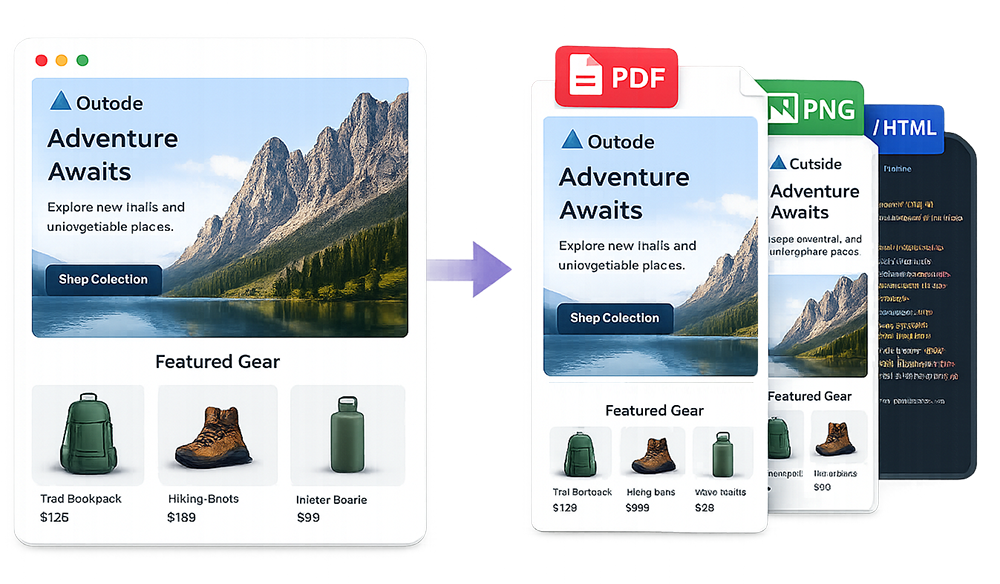
An EML file is a saved email message. It often contains headers, sender and recipient information, plain text, HTML content, inline images, and attachments. Converting EML to HTML means extracting the email body into a format you can open in a browser, inspect, edit, save, or reuse.
ScreenshotEmails makes that workflow practical: upload the EML file, preview the rendered email, then download the email as HTML. You can also export a full-length PNG or PDF from the same file.
The fastest workflow is upload, preview, then export. No raw message cleanup required.
Drop your EML file into ScreenshotEmails or click to browse from your device.
Render the email in a clean browser preview and switch between desktop or mobile views.
Open the download menu and export the rendered email as HTML, PNG, or PDF.
Upload a saved email and export usable HTML, a polished PNG screenshot, or a PDF preview from the same workflow.
Try ScreenshotEmailsEML files are great for saving email messages, but HTML is easier to inspect, reuse, preview, and share.
Extract rendered HTML from an email you like so you can inspect layouts, buttons, sections, spacing, and other reusable ideas.
Export a clean PNG or PDF preview for Slack, Notion, Asana, client approvals, or internal campaign QA.
Turn an EML file into a browser-friendly HTML file or a polished screenshot for documentation, compliance, or records.
An EML file is a standard file format used to store a single email message. It can include the sender, recipient, date, subject, headers, email body, plain text, HTML, inline images, and attachments depending on how the file was saved.
EML files are commonly used for backups, legal records, email migrations, forwarding messages outside an inbox, and preserving emails exactly as they were sent.
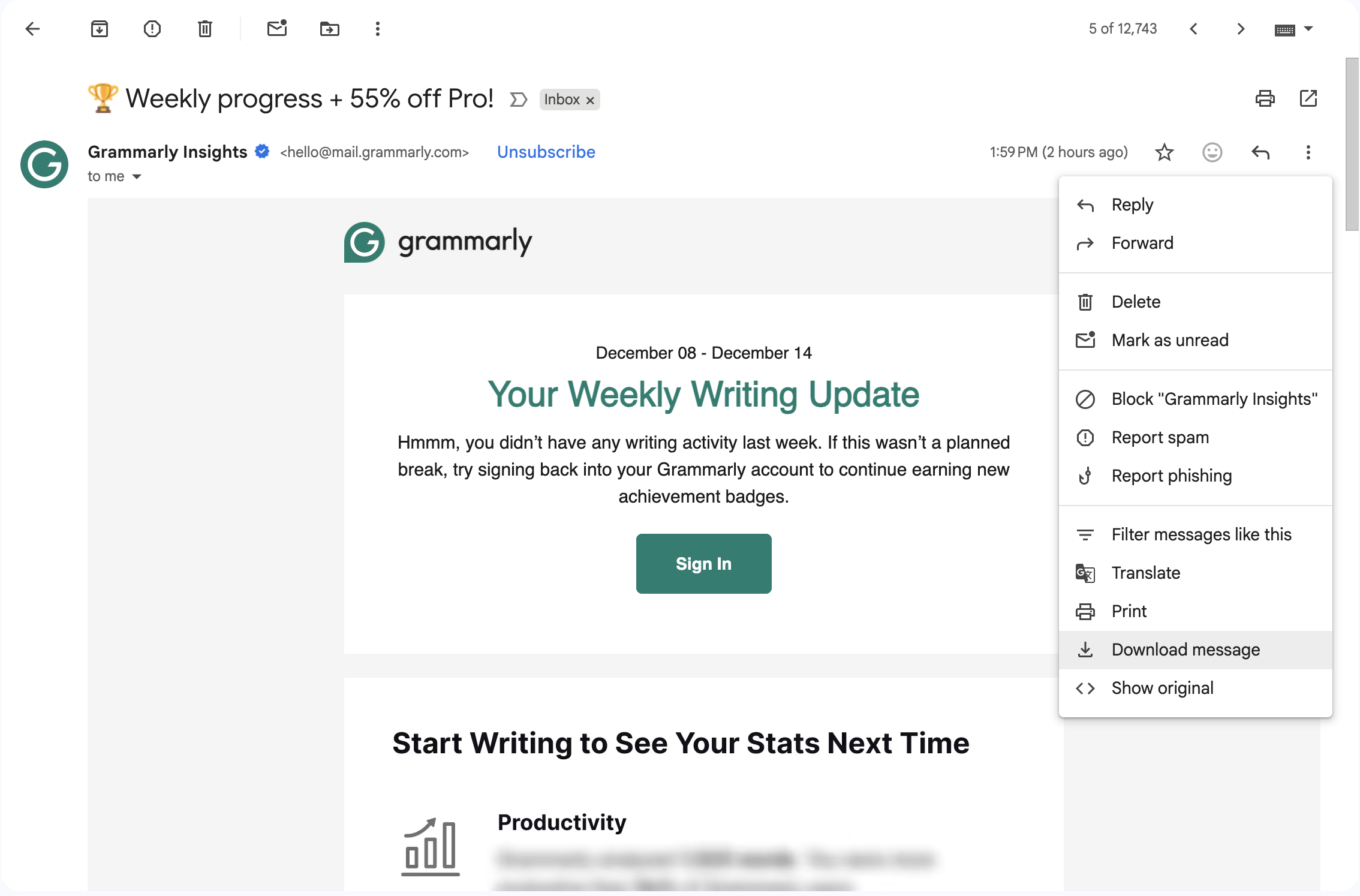
Tip: Many email clients store the email body as HTML, but it is buried inside the EML file alongside headers, encoding, and other message data. A converter pulls the usable HTML out of that saved message.
Some emails reference hosted images, while others embed images inside the message. If the original images require login access or have expired, a converted HTML file may not display every asset perfectly.
Email clients apply their own rendering rules. A good converter preserves the email structure and inline styles, but exact visual output can still vary by client, browser, and image availability.
Sometimes HTML is useful for inspection or reuse, while PNG or PDF is better for sharing. ScreenshotEmails lets you generate all three from the same uploaded email.
Need help getting the file first? Read how to save an EML file. Want a visual export instead? Visit the email screenshot tool guide. Working directly with email code? See how to screenshot HTML emails.
Use the same uploaded EML file for code extraction, visual review, documentation, and sharing.
Convert received emails into HTML or PNG previews for inspiration, team feedback, approvals, and campaign documentation.
Share polished email previews with clients without forwarding the original email or cleaning up raw message source.
Extract HTML for debugging, reconstruction, QA notes, or comparing how an email was built.
Common questions about converting EML files to HTML, PNG, and PDF.
Yes. Upload an EML file to ScreenshotEmails, preview the email, and select Download HTML from the download menu.
Yes. You can download a full-length PNG screenshot after the email renders in the preview.
Yes. ScreenshotEmails also supports PDF export for review, archiving, and approvals.
It should preserve the rendered email structure, but exact output can depend on image availability, inline styles, and how the original email was built.
Gmail, Outlook, Apple Mail, Yahoo Mail, Thunderbird, Proton Mail, and many other email tools can save or export individual messages.
Yes. ScreenshotEmails is free to use and does not require signup or installation.