1
Paste your HTML
Add the complete email document, including inline styles and any responsive CSS used by the campaign.
HTMLInline CSS

Paste your email code or upload an EML file to review the rendered design, compare desktop and mobile layouts, and export a clean preview.
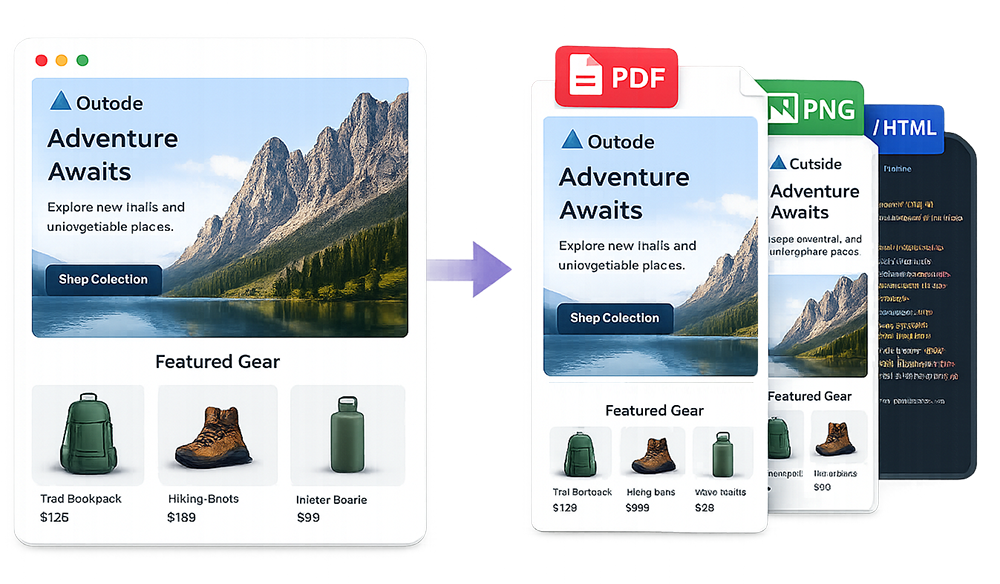
An HTML email preview tool lets you paste email code into a browser and see the rendered result before sending the campaign. It is useful for checking layout, spacing, typography, image loading, link placement, and responsive behavior. When you are ready to share or archive the result, use the free email screenshot generator to export a full-length image.
ScreenshotEmails also lets you upload an EML file when you want to inspect a message that has already been sent or received. After the preview renders, you can export it as PNG, PDF, or HTML.
Review campaign creative quickly before sending a test message or opening an email client.
Add the complete email document, including inline styles and any responsive CSS used by the campaign.
Open the email in a clean browser preview and inspect the design without inbox navigation or surrounding interface elements.
Compare desktop and mobile views, then export a PNG or PDF for feedback and documentation.
A quick browser preview can expose obvious design and content problems before a campaign reaches the testing stage.
Spot uneven padding, off-center content, broken columns, unexpected gaps, and sections that do not line up.
See whether columns stack logically, text stays readable, images resize, and buttons remain easy to tap.
Verify that images load, calls to action stand out, headings are clear, and the message is easy to scan.
An HTML email preview tool renders email markup so you can review the visual output rather than reading tables, inline styles, media queries, and conditional comments in the source code.
This is especially helpful because production email HTML often looks very different from a normal web page. Email templates rely heavily on tables, inline CSS, fixed widths, spacer cells, and compatibility techniques that are difficult to understand from code alone.
Confirm that the headline, supporting copy, primary call to action, and secondary content appear in the intended order. A technically correct layout can still feel confusing if the visual hierarchy is weak.
Check whether remote images load, dimensions are correct, alt text is present, and the layout still makes sense if images are blocked.
Review button contrast, text size, surrounding whitespace, and mobile tap area. Also confirm that linked text is visually recognizable.
For multi-column layouts, inspect the mobile order carefully. Content that looks balanced on desktop may become confusing when stacked.
Headlines, buttons, prices, and dynamic personalization can wrap unexpectedly. Use realistic content rather than placeholder text whenever possible.
Browser preview vs. inbox testing: A browser preview is an efficient first pass, but it cannot reproduce every email client. Outlook, Gmail, Apple Mail, Yahoo Mail, and mobile apps may interpret CSS differently.
| Method | Best for | What it cannot guarantee |
|---|---|---|
| Browser preview | Fast layout review and responsive checks | Exact rendering in every inbox |
| Test email | Checking one or several real accounts | Coverage across all major clients |
| Dedicated client testing | High-confidence pre-send QA | It may require additional time or paid tools |
Paths such as /images/banner.jpg may work on your website but not in a standalone email preview. Use fully qualified HTTPS URLs for hosted images.
Many email workflows inline CSS before sending. If you preview code before that transformation, the rendered result may not match the final campaign.
Email clients often remove or ignore linked stylesheets. Critical styles should be included in the email and typically inlined where appropriate.
Modern web techniques such as advanced flexbox, grid, filters, or complex selectors may have limited support in email clients.
Create a clean image with the email screenshot generator, learn how to save email as PNG, screenshot an entire Gmail email, or screenshot an entire Outlook email. You can also convert an EML file to HTML or convert EML to PNG.
Answers to common questions about previewing responsive email code online.
Paste the complete email HTML into ScreenshotEmails and render it in the browser.
Yes. Switch between desktop and mobile widths to review responsive behavior.
Yes. ScreenshotEmails can render EML files as well as pasted HTML.
Not always. Email clients use different rendering engines, so browser preview should be paired with client testing for important campaigns.
Yes. Export the rendered email as PNG, PDF, or HTML.
Yes. ScreenshotEmails is free to use and does not require an account.