
Open the email
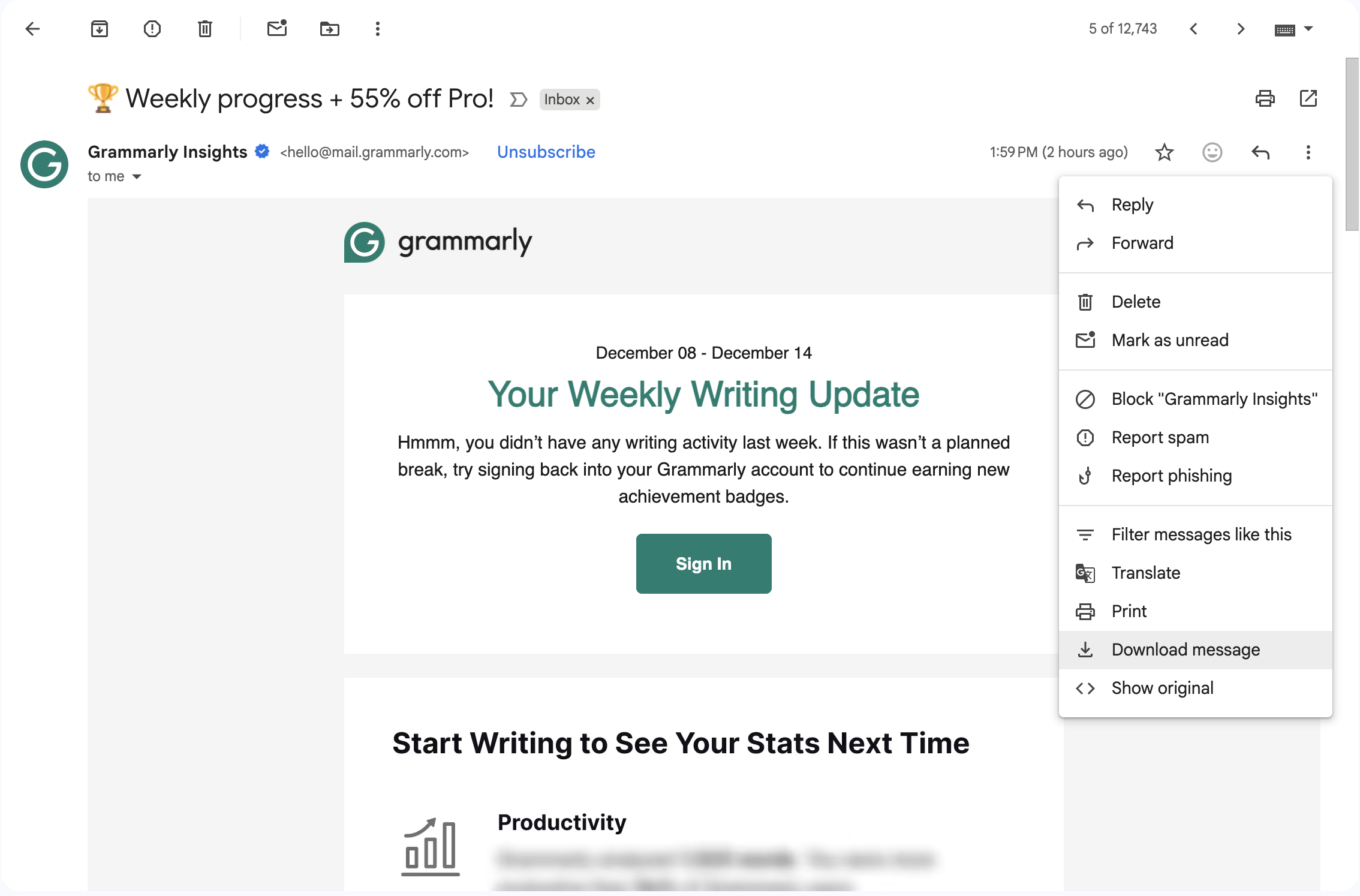
Start by opening the individual message you want to save, not just selecting it in your inbox list.
Need to screenshot an email you received? This guide shows you how to save an EML file from popular email services, then upload it to ScreenshotEmails to create a clean full-length PNG, PDF, or HTML export.
An EML file is a saved email message. It can include the sender, recipient, subject line, message body, formatting, images, headers, and sometimes attachments. Many email apps use EML files because they preserve the message in a portable format.
For ScreenshotEmails, an EML file is useful when you want to capture an email you received in Gmail, Outlook, Apple Mail, Yahoo Mail, Thunderbird, Proton Mail, or another inbox, but you do not have direct access to the original HTML code.
Most providers use slightly different menus, but the overall process is usually the same.
Start by opening the individual message you want to save, not just selecting it in your inbox list.
Look for options like Download message, Save As, Export, View source, or View raw message.
Download the message directly, or save the raw message source with the .eml file extension.
Upload the EML file to ScreenshotEmails and export a clean full-length screenshot.
Use the steps below for the most common inboxes and email clients.
Once you have the .eml file, upload it to ScreenshotEmails to generate a clean PNG, PDF, or HTML export without manual cropping.
Try the ToolSaving an email as an EML file gives you a portable copy of a specific message. That can be helpful for archiving important receipts, saving confirmations, keeping a record of client approvals, moving email between apps, or sharing a message outside your normal inbox.
EML files are also useful for creating screenshots of emails you received. If you cannot access the raw HTML, downloading the email as an EML file gives ScreenshotEmails a file it can render and capture.
Want to capture the email after saving it? Visit the email screenshot tool guide. Working with email code directly? Read how to screenshot HTML emails. Want to reuse email code? See how to convert EML to HTML.
Saving the message is only half the job. ScreenshotEmails helps you turn that saved email into something easy to share.
Create one clean screenshot instead of taking several screen captures and manually piecing them together.
Use the format that fits your workflow, whether you are saving records, sharing with a team, or reviewing email design.
Open the browser tool, upload your EML file, preview the message, and download the result.
Common questions about saving EML files and using them for screenshots.
An EML file is a saved copy of an individual email message. It can preserve the subject, sender, recipient, body, formatting, and other message data.
Yes. Open the message in Gmail, click the three-dot More menu, and choose Download message.
It depends on the version. Outlook desktop often uses MSG by default, while Outlook.com can expose message source that can be saved with an .eml extension.
Yes. Upload the EML file to ScreenshotEmails, preview the email, and download a full-length screenshot.
They can include attachments, depending on the email provider and export method. Screenshot results focus on rendering the visible email content.
Yes. ScreenshotEmails is free to use and does not require signup or installation.