1
Add your email
Paste campaign HTML or upload a saved .eml file from Gmail, Outlook, Apple Mail, Thunderbird, or another email client.
HTMLEML

Turn HTML or an EML file into a clean, full-length email image. Preview desktop and mobile versions, then export PNG, PDF, or HTML without inbox clutter.
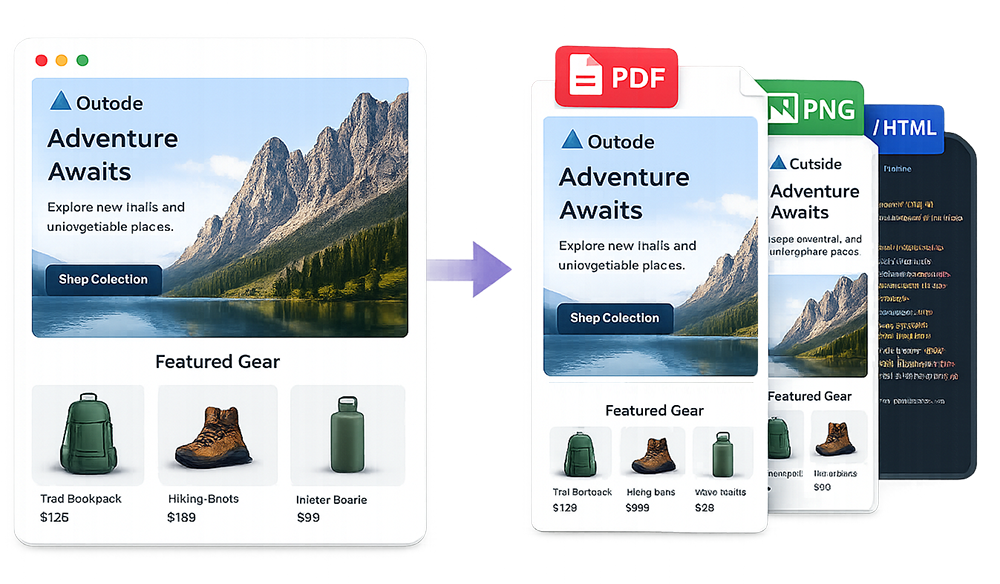
An email screenshot generator turns an HTML email or saved EML message into a polished image that is easier to review, archive, and share than an inbox capture. Instead of stitching together multiple screenshots or cropping out browser controls, you get the complete email creative by itself.
ScreenshotEmails is built for email marketers, designers, developers, agencies, and anyone who needs a reusable visual record of an email. Paste HTML or upload an EML file, preview the result, and download a full-length PNG, PDF, or HTML copy.
Create a polished email image in three steps without an extension, account, or desktop app.
Paste campaign HTML or upload a saved .eml file from Gmail, Outlook, Apple Mail, Thunderbird, or another email client.
Review the email at desktop or mobile width so the screenshot matches the context in which the creative will be evaluated.
Export a full-length PNG for easy sharing, a PDF for documentation, or rendered HTML for inspection and archiving.
Create a full-length email screenshot without exposing your inbox, cropping browser controls, or combining multiple captures.
Generate an Email ScreenshotA normal screenshot records your screen. A dedicated generator records the email creative itself.
Keep browser tabs, sidebars, account names, labels, and private inbox details out of the final image.
Export the entire message in one image, including long newsletters and promotions that extend far below the fold.
Create consistent screenshots for campaign briefs, approvals, QA tickets, inspiration libraries, and portfolios.
A browser or operating-system screenshot can work for a short email, but it often captures more than you need. The result may include inbox navigation, browser controls, notification badges, account information, and only the portion of the email visible on screen.
An email screenshot generator renders the email independently. That makes the image easier to reuse in presentations, feedback threads, case studies, campaign archives, and creative libraries.
| Method | Best for | Main limitation |
|---|---|---|
| Normal screenshot | Quick personal reference | Often includes inbox clutter and cuts off long emails |
| Full-page browser capture | Web pages opened in a browser | Email HTML may not be isolated or rendered cleanly |
| Email screenshot generator | Reviews, archives, portfolios, sharing | Requires HTML or an EML file as the source |
Share one clean image in Slack, Teams, Notion, Asana, Trello, or a client portal. Reviewers can see the full creative without forwarding a live email or opening raw HTML.
Save newsletters, promotions, lifecycle emails, and transactional messages in a consistent format. Full-length images are easier to tag and browse than loose EML files.
Attach screenshots to bug reports to record spacing, missing content, unexpected line breaks, or responsive issues at a specific stage of production.
Present email work without showing your inbox. A clean image fits naturally into a website, slide deck, or design portfolio.
Important: A browser preview is useful for reviewing structure and responsive behavior, but it does not replace testing in major email clients. Gmail, Outlook, Apple Mail, and mobile apps may apply different rendering rules.
A useful screenshot should reflect the viewing context. Desktop captures show the full-width design and work well for presentations or archives. Mobile captures reveal how the layout stacks, how text wraps, and whether buttons remain easy to tap.
For important campaigns, create both. The pair gives reviewers a faster understanding of how the design behaves across screen sizes.
Learn how to save an email as PNG, use the HTML email preview tool, or see how to convert EML to HTML.
Answers to common questions about turning emails into images.
It renders HTML or an EML message as a clean image without the surrounding inbox interface.
Yes. ScreenshotEmails exports the complete rendered email as one full-length PNG.
Yes. Paste your HTML, preview the email, and download the result as PNG or PDF.
Yes. Saved EML messages can be rendered and exported as PNG, PDF, or HTML.
Yes. Switch to a mobile-width preview before downloading the image.
Yes. It is free to use and does not require signup or installation.