
 Email to Figma guide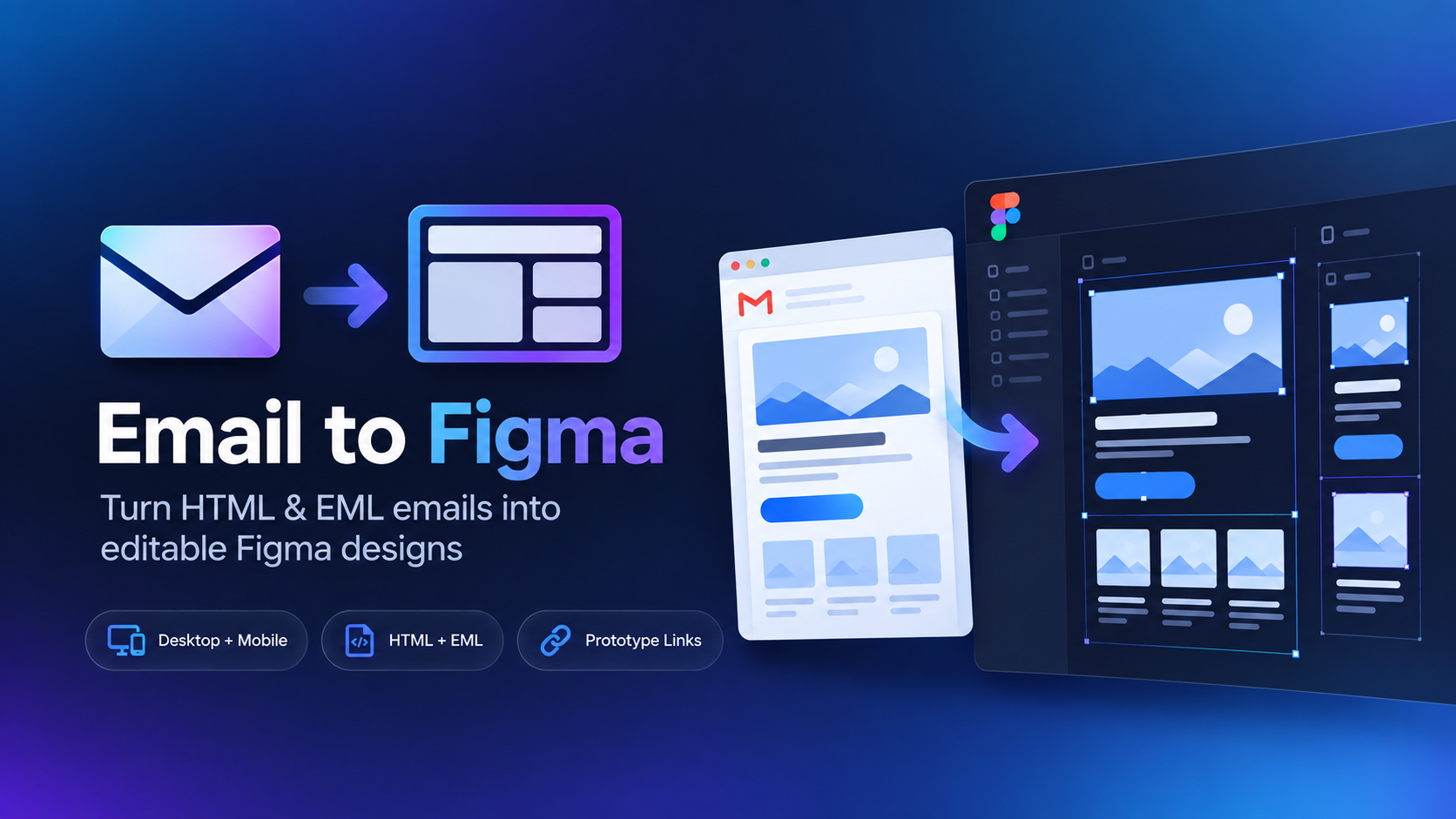
Import an email into Figma step by step
Email designs are often trapped inside inboxes, ESP previews, or exported HTML. Email to Figma is built specifically to turn those files into usable design references without starting from scratch.
1
Save the emailIf the email is in Gmail, Outlook, Apple Mail, or another client, download it as an EML file. If you already have the campaign source, use the HTML file instead.
2
Open Email to FigmaInstall the plugin from the Figma Community and launch it inside the Figma file where you want the imported email to appear.
3
Upload the EML or HTML fileEmail to Figma parses the message, renders the email layout, and creates editable layers in Figma.
4
Edit, annotate, or redesignChange text, swap imagery, inspect spacing, add notes, or use the imported email as a starting point for a redesign.
You do not need the original HTML.
If an email is already sitting in your inbox, saving it as EML is usually enough. That makes competitor examples, old campaigns, and inspiration emails much easier to bring into Figma.