ScreenshotEmailsScreenshotEmails
Outlook email to Figma

Import an Outlook email into Figma.

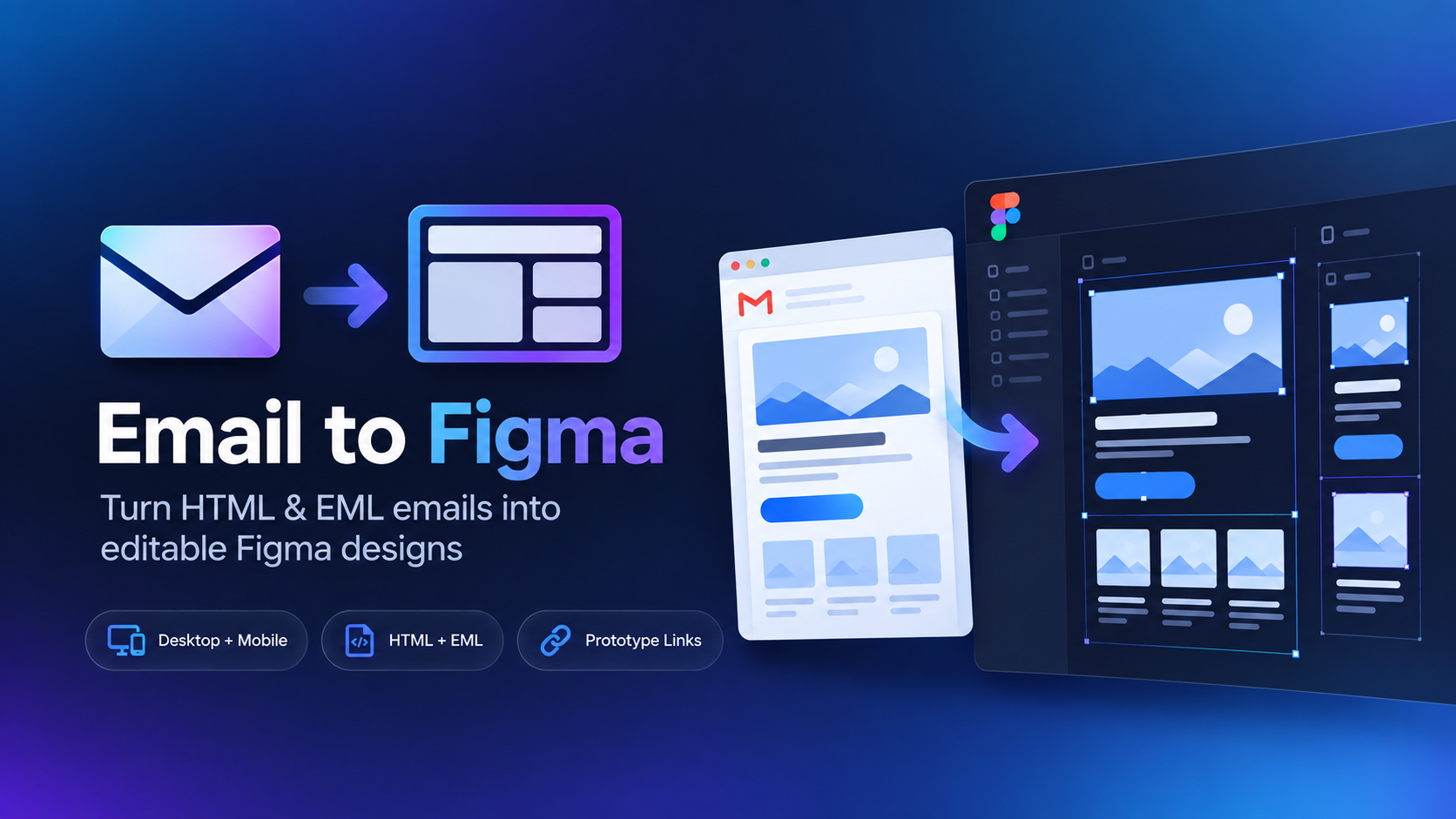
Save an Outlook message as an EML file, upload it to Email to Figma, and turn the received email into editable Figma layers for review, redesign, or inspiration.

Outlook email imported into Figma
Save as EML
Upload to plugin
Edit in Figma
Quick answer

In new Outlook or Outlook on the web, save the message as an .eml file when that option is available. Then open Email to Figma and upload the EML file to recreate the email as editable Figma layers.

How to import an Outlook email into Figma

1
Open the individual messageChoose the exact email you want to bring into Figma.
2
Save the message as EMLIn supported Outlook versions, use the Save as or download option to create an .eml file. Classic Outlook may default to MSG instead.
3
Open Email to FigmaLaunch the plugin in the Figma file where you want the email to appear.
4
Upload the EML fileThe plugin interprets the saved email and recreates it as editable Figma content.
Classic Outlook users: MSG is different from EML.

Renaming a .msg file to .eml does not convert it. If your Outlook version only saves MSG, use a version or export method that produces EML before importing.

Why this workflow is useful

Outlook inboxes often contain the exact production version of an email you want to review. Importing the received message into Figma gives marketers and designers a shared workspace for annotations, redesigns, competitive analysis, and design-system work.

Related guides

Turn an Outlook email into an editable Figma design.

Save the message as EML, then import it with a plugin built specifically for email layouts.