
 Mailchimp email to Figma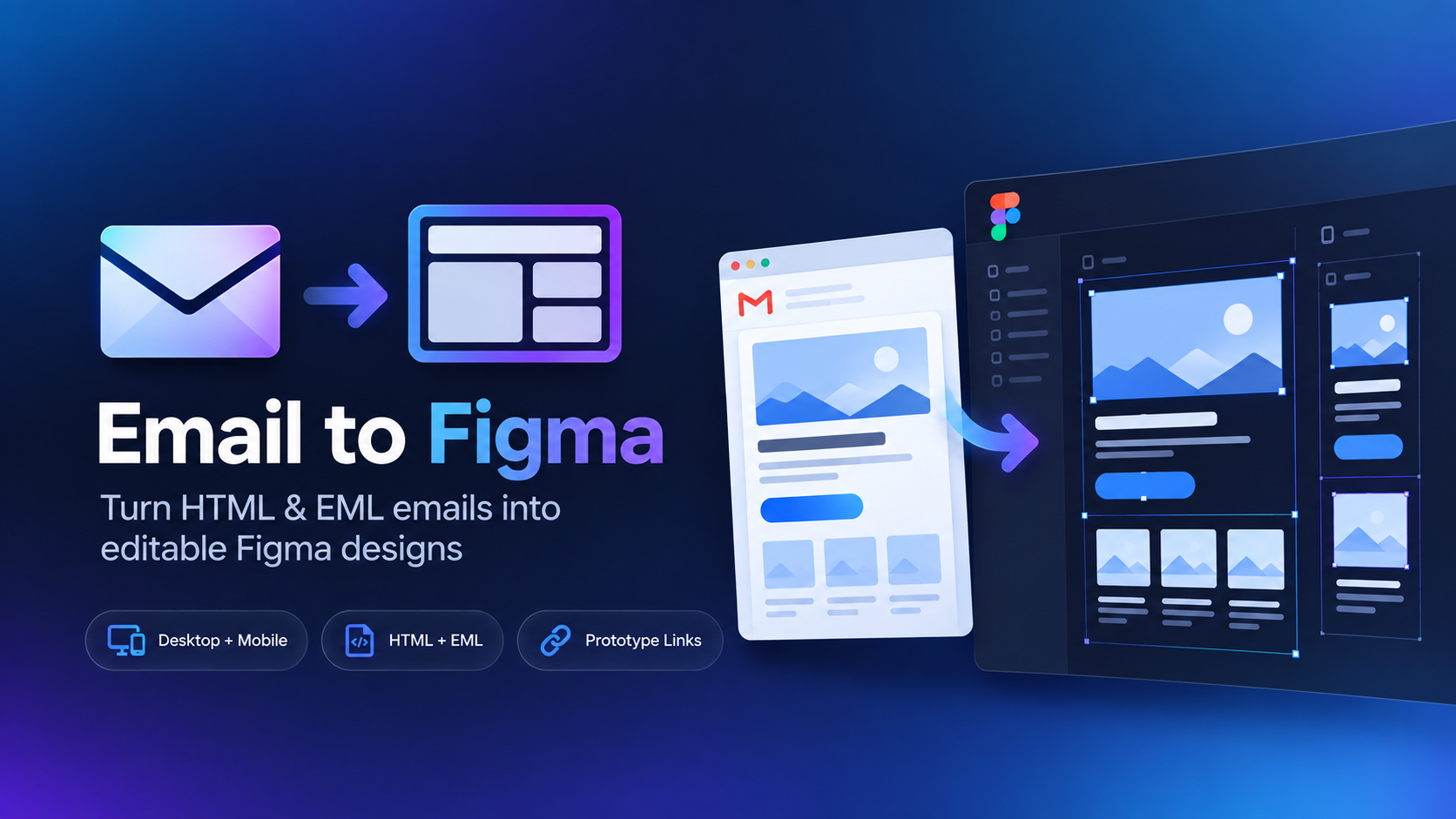
Two ways to move a Mailchimp email into Figma
Option 1: Use campaign HTML
If you have access to the Mailchimp campaign source, save or export the email as HTML. This is the most direct route when you're working with your own campaign.
1
Save the Mailchimp email HTMLExport or copy the campaign source into a complete .html file.
2
Open Email to FigmaLaunch the plugin in your destination Figma file.
3
Upload the HTML fileThe campaign is rendered and recreated as Figma content.
Option 2: Use the email from your inbox
If you received the Mailchimp campaign but don't have access to its account or source HTML, save the delivered message as EML and import that instead.
This is useful for competitor research.
You can work from the email you actually received, which means you don't need access to the sender's Mailchimp account or template.